Subscription portal
Last updated: August 14, 2026
The subscription portal replaces the need for customers to go their subscription portal to edit their order (swap variants) or edit the timing of their next shipment.
For active subscribers, the subscription portal is a powerful tool for both increasing AOV and retaining customers longer.
Read here for best practices and example upcoming order emails utilizing the subscription portal:📄 Upcoming order / billing reminder: best practices
Need ideas?
Example emails using the subscription portal
Parts of the subscription portal
The subscription portal is made up of several components, each of which may be independently hidden/shown using the configuration panel
Header | Displays text and the status of the customer's subscription ('Active', 'Updated', or 'Payment Issue'). When a payment issue is detected, the portal displays the failed payment status and can redirect customers to update their payment method on your website. Note: Payment information cannot be updated directly within the email. |
Order details | Pulls the customer's upcoming order details from the subscription provider and allows them to change quantities and variants |
Subscription actions | Allows the customer to accelerate billing to the current date ('Send Now'), or postpone their billing date ('Delay') |
Subscription portal link | Redirects to the customer's subscription portal (Recharge, Skio, Stay.AI, etc.) |
Delay Options
You may edit which delay options are presented to a customer by first clicking on the button, then in the configuration panel setting the button state to 'Delay Options'.
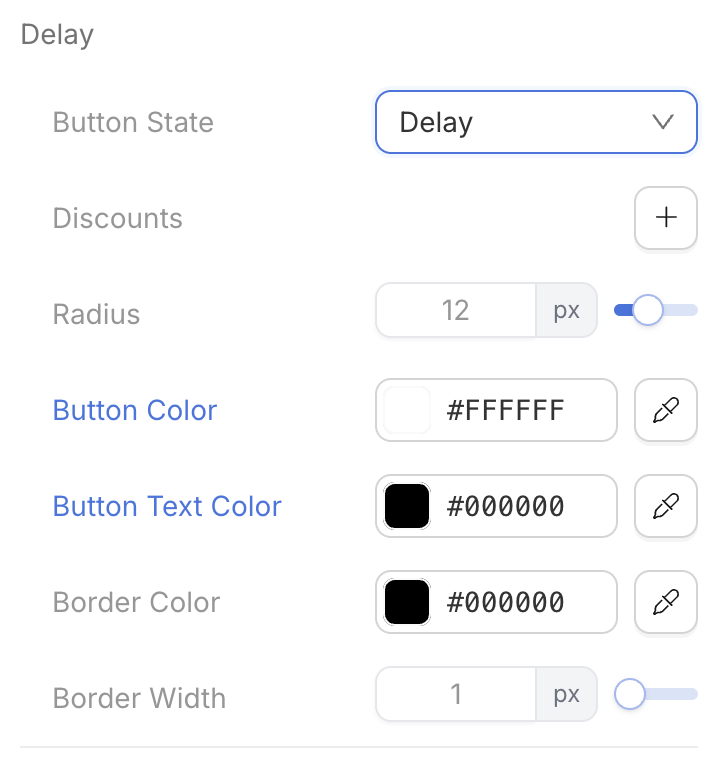
From there, you can delete any delay options that you do not want to grant to the customer. You can also change the delay timeframe by selecting the 'weeks' dropdown. Available options include 'days,' 'weeks,' 'months,' and 'cycles.'
A cycle refers to a single billing period interval. Skipping one cycle means postponing the billing date by one full billing period, effectively delaying the next payment by the length of that cycle. For example, shipments that send every month, it will push their next order back by 1 month. Shipments that send every 3 months, delaying by one cycle pushes their next order back by 3 months, etc.
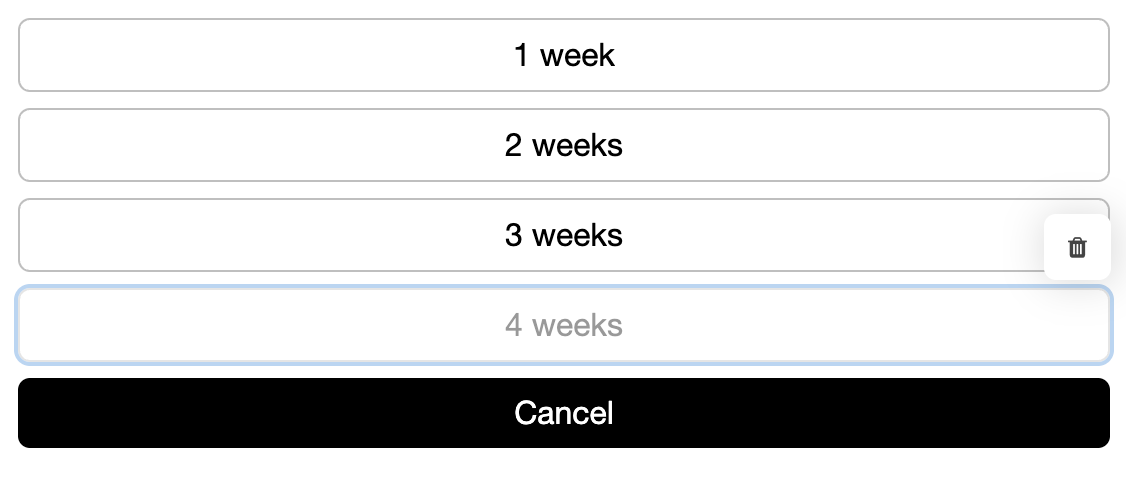
For customers, there is no one-click delay option. The delay process requires double confirmation: first clicking the delay button, then selecting the desired delay option.
Settings unique to the subscription portal
Variant selector | Choose whether to allow variant selection for the items in the customer's upcoming order |
Quantity selector | Choose whether to allow quantity editing for the items in the customer's upcoming order |
Currency | Choose the currency displayed. If the currency is incorrect, Zaymo will still show the correct value in your currency, but the currency symbol will be incorrect |
Delay Options | Choose how many weeks a customer may delay their order by (between 1 and 4 weeks) |
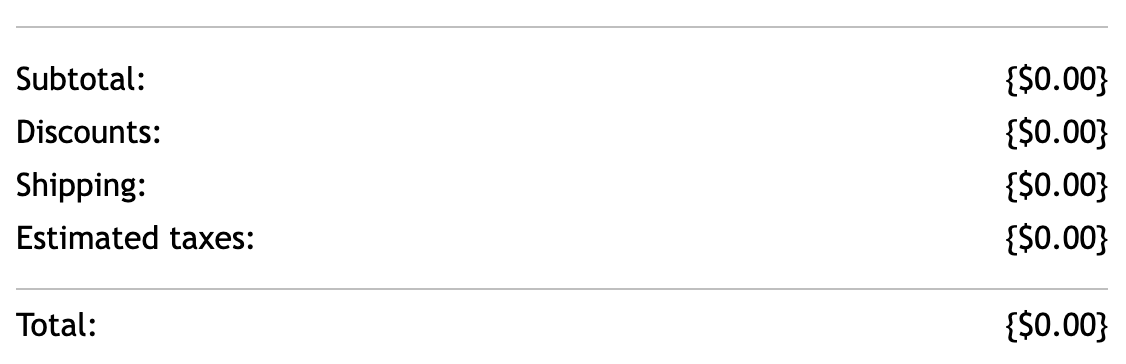
Detailed Order Summary | Adds the customer's subtotal, shipping, and taxes to the subscription portal |
Cross-sell Purchase options | Edit which action the CTA takes (e.g., add as one-time to next order or add as a subscription to the next order). Read more |
Manage Subscription URL | Determines the URL redirect when customers click the "Manage my Subscription" link. Details to If you want to change the hyperlink, go to Content, then navigate to Manage Subscription URL and update the URL as desired |
Detailed order summary
The subscription portal can also display additional details about a customer's order, including discounts, shipping, and estimated taxes.
Availability by subscription provider
Subscription Provider | Detailed order summary available? |
Recharge | ✅ |
Skio | ✅ |
Stay.ai | ✅ |
Ordergroove | ✅ |
Loop | ✅ |