Analytics - account page
Last updated: July 3, 2026
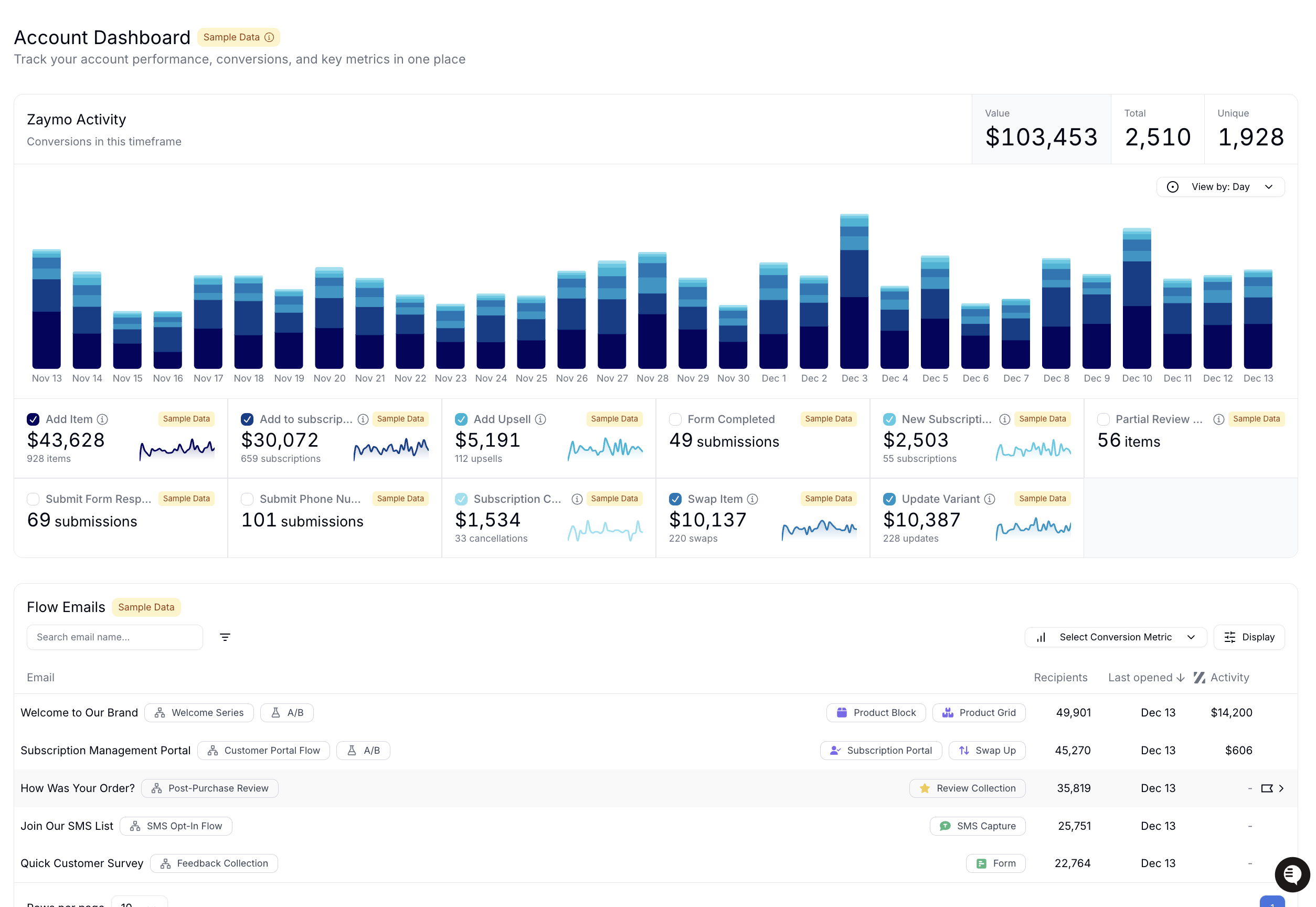
What is the purpose of the account view?
Here, you can see the health of your account at a glance. The account view takes all in-email interactions and summarizes them in one place. Additionally, the account view houses summaries of each flow or campaign message with Zaymo enabled and links you to individual message pages for those.
Zaymo activity chart
The activity chart shows all Zaymo events that took place in your account.
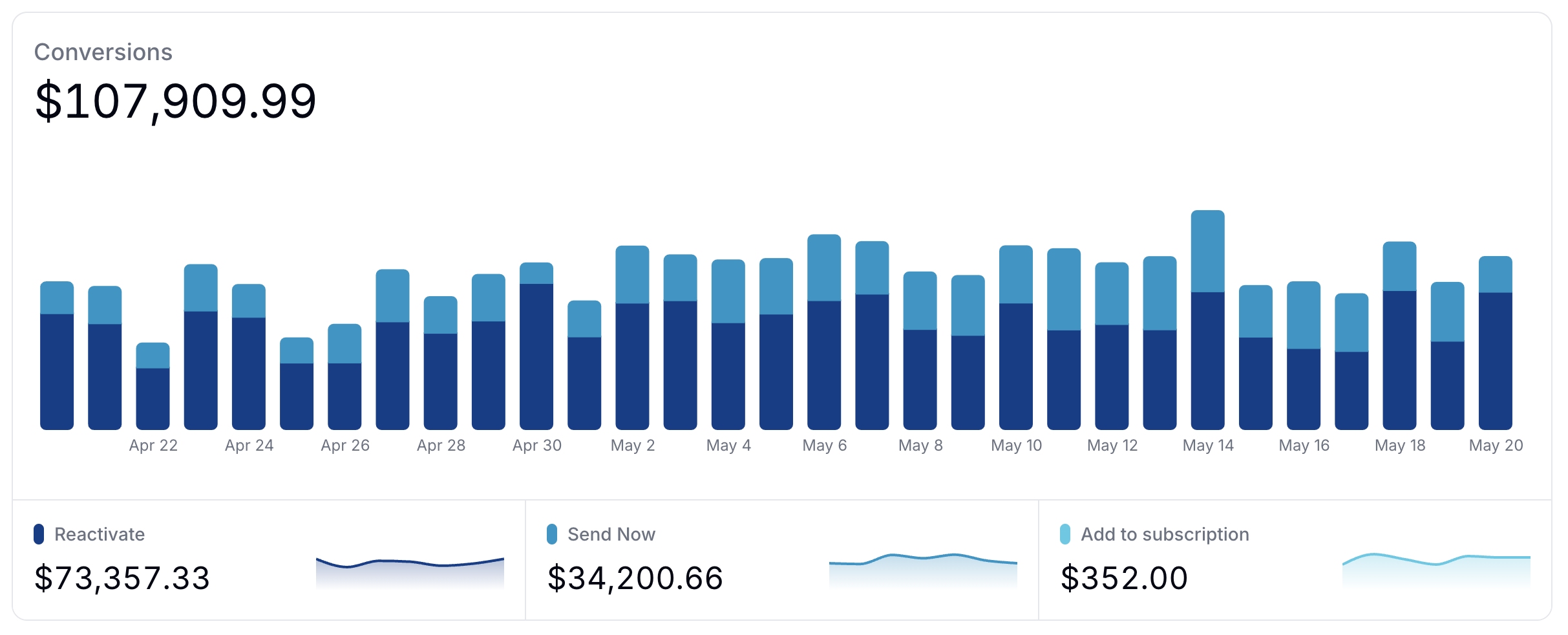
The chart does not show events from other sources (ex: Recharge one-time add-ons or Shopify order placed) even when they are relevant to the account
Settings
By default, the conversion chart displays events with monetary value. To see other Zaymo events, simply change the Measurement dropdown to count or unique.
Flow & campaign email table
The flow email table shows all emails that have been sent from Klaviyo and opened at least once.
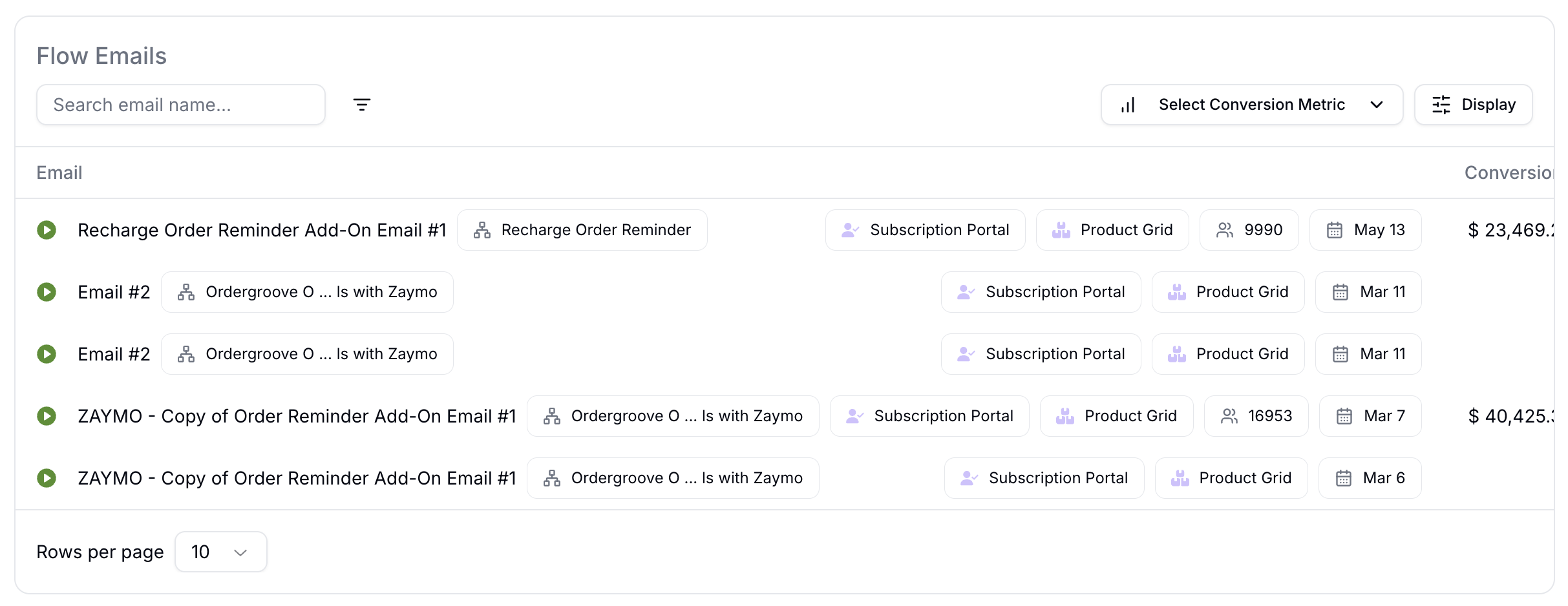
The flow table shows
The name of the message (pulled from Klaviyo)
The name of the flow (pulled from Klaviyo)
All Zaymo blocks included in the email
The date the email was last edited
The total value of Zaymo actions attributed to the email
How to use the flow & campaign table
You can filter / sort emails with the settings listed out below. To open up the message analytics page, Click on the name of an email.
Select conversion metric
You can add one extra conversion metric to the column at a time. These conversion metrics are sourced from Klaviyo's metrics tab.
Klaviyo rate limits
Klaviyo rate limits our calls to pull data. So, you can only explore two metrics from Klaviyo per minute. If you attempt to toggle between more than two metrics per minute, Zaymo will stop you. Wait 60 seconds and try again.
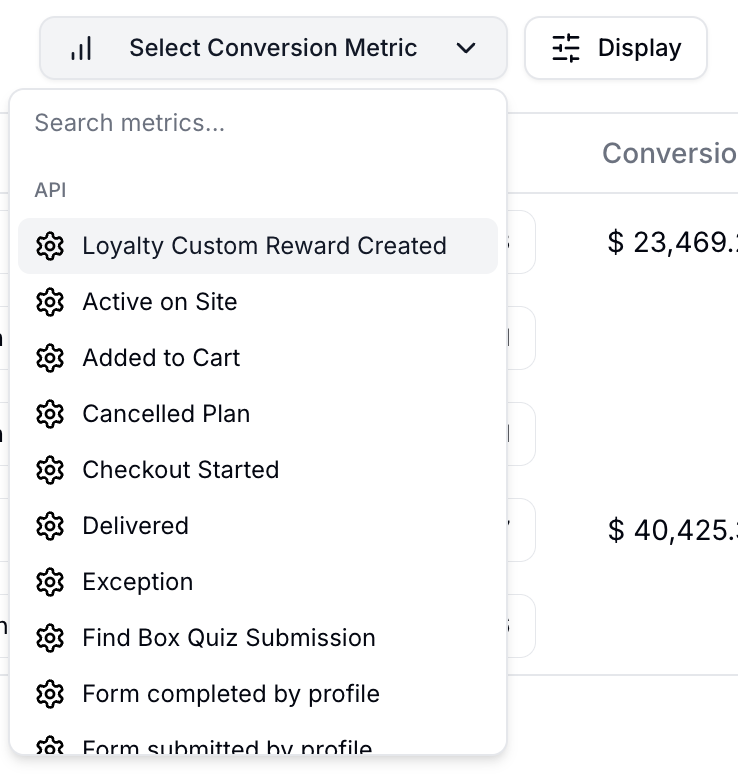
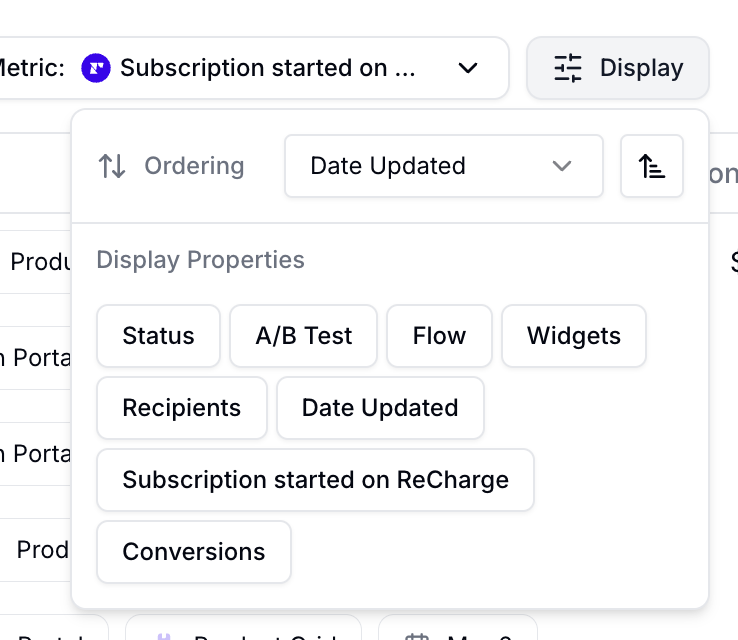
Display settings
In the display settings, you can change:
Sorting of the emails in the table
Turning on/off columns in the table
Sample data
If you have no live emails, Zaymo populates sample data for you to preview. Once your Zaymo-enabled emails are opened by real recipients, the account dashboard will automatically transition to display your real analytics data. While viewing sample data, you’ll see a yellow “Sample Data” tag on the dashboard. Read more about sample data for analytics.
Here is an example: