Confirmation pages
Last updated: March 11, 2026
What are confirmation pages?
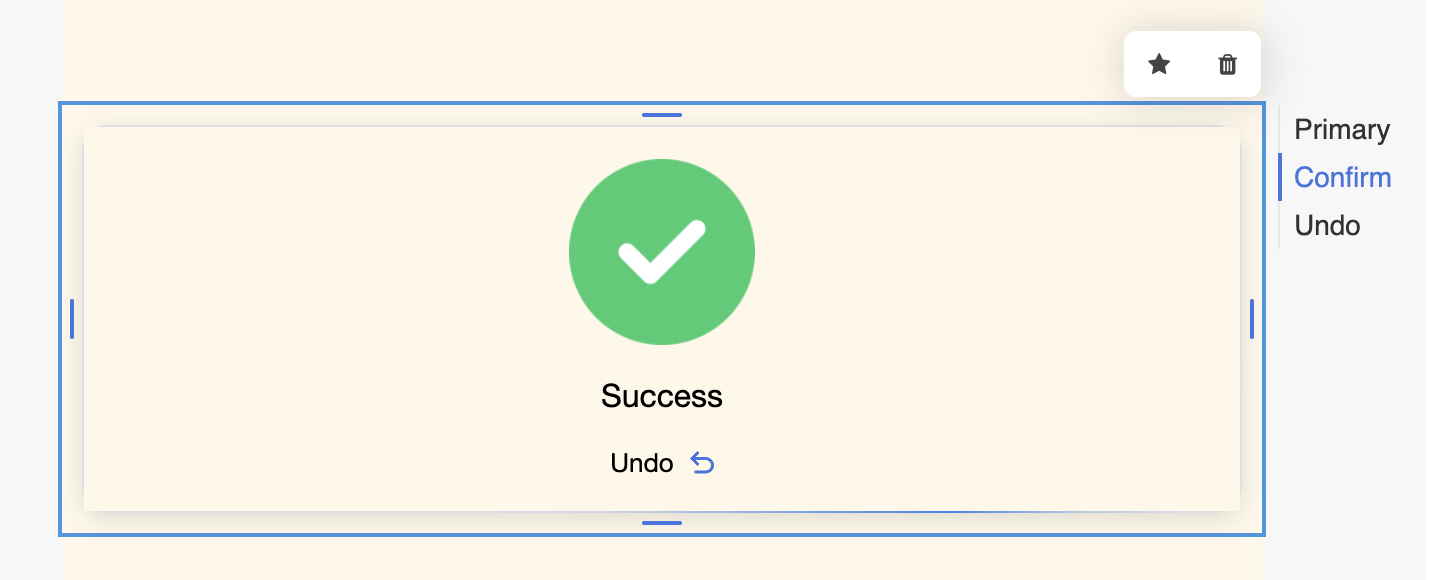
Confirmation pages are the success messages. that appear in a subscription block after an action has taken place.
The screen appears to confirm that an action triggered by a Zaymo block successfully took place.
Which blocks have confirmation pages I can edit?
Below is a list of blocks that have confirmation pages. Each block has a different default confirmation message that is also listed below.
Block | Confirmation page? | Default confirmation message |
Product block | ✅ | "Success" |
Product grid | ✅ | "Success" |
Product grid as part of the subscription portal | ✅ | "Success" |
Subscription actions as part of the subscription portal (delay / send now) | ✅ | "Order Updated" |
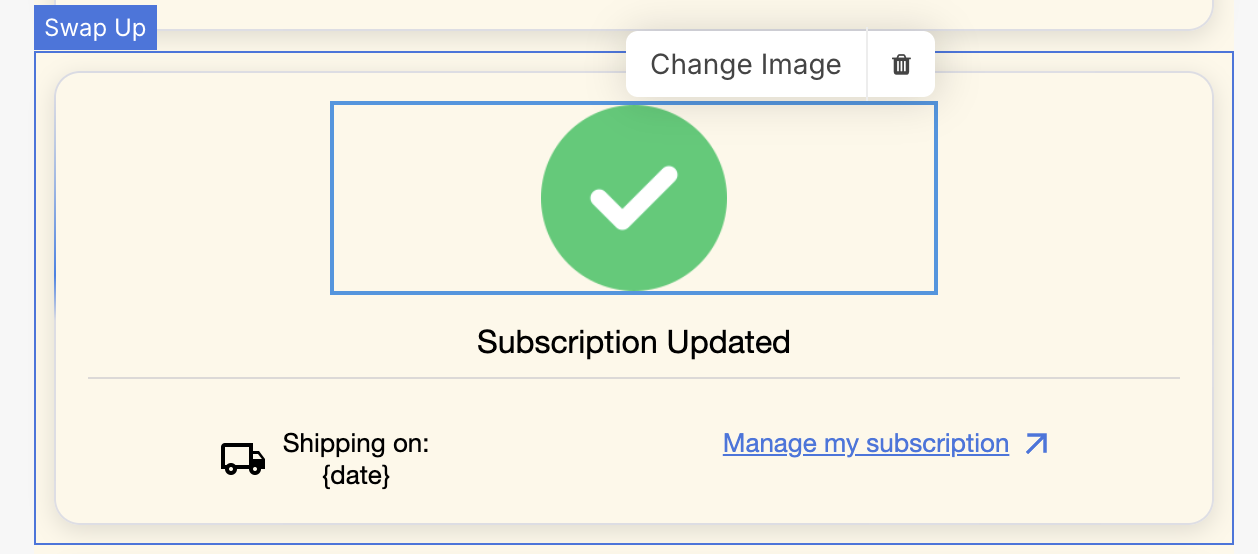
Swap up | ✅ | "Subscription Updated" |
Reactivate | ✅ | "Reactivated" |
If an action can be undone, there will be an Undo page that is also editable.
How do I edit confirmation pages?
First, navigate to the confirmation using the screen navigation bar that appears next to the block when the block is selected.
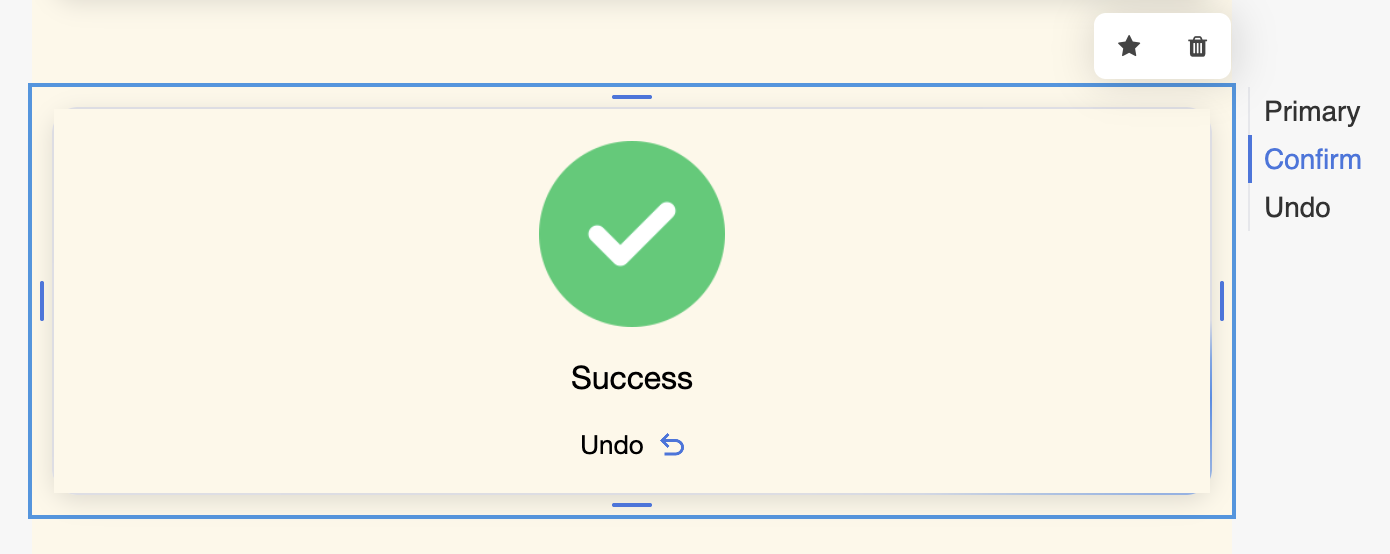
Confirmation pages can be edited in the builder canvas--not in the sidebar settings.
What can I edit in the confirmation page?
All confirmation pages allow you to edit the confirmation text and image. If the confirmation screen has other information (like the Manage my subscription text in the Swap Up block or the Undo text in the product block), that information can also be edited in the canvas.
The confirmation page's background color, text color, and other properties are inherited from the primary screen.
Known limitations
Product grid--all screens are edited at the same time
In the product grid, you cannot edit each individual product block's confirmation page. Instead, all confirmation pages inherit the settings of the first product block in the grid.
Static messages for product block & subscription actions.
The success message is hard-coded and cannot change based on the type of action taken in the block.
For example, in the product block, you need to choose a message that is appropriate for both a one-time add-on or a subscription add-on since both may be possible from the primary screen.
In the Subscription Action section of the Subscription Portal, you need to choose a message that is appropriate for both a Send now action or a Delay action since both may be possible from the primary screen.
Apple Mail success screen loading time
Currently, the confirmation page for Apple Mail clients is generated on every single success instead of being cached for the email template. This adds some additional loading time to the success message appearing.
Reach out to the product team if you believe this loading time is inappropriate.