How to use purchase options
Last updated: July 29, 2026
Functionality
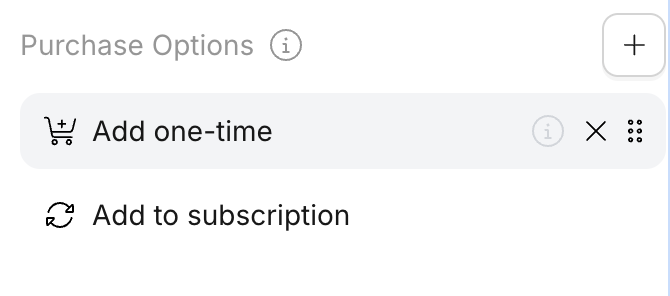
Zaymo product blocks/grids support five types of purchase options:
Purchase Option | Behavior |
Add one-time | Adds the item only to the customer's next subscription order |
Add to subscription | Adds the item to all future subscription orders |
Create one-time order | Creates a separate, standalone order (not linked to any subscription). Processes and ships independently. |
Create new subscription | Creates a new recurring subscription for the customer |
Free for subscribers | Add the product to the customer's next shipment as a free gift. Customers without an active subscription are redirected to normal checkout at full price. |
Purchase options may be added/removed and have their display order changed using the configuration panel.
Purchase options affect prices
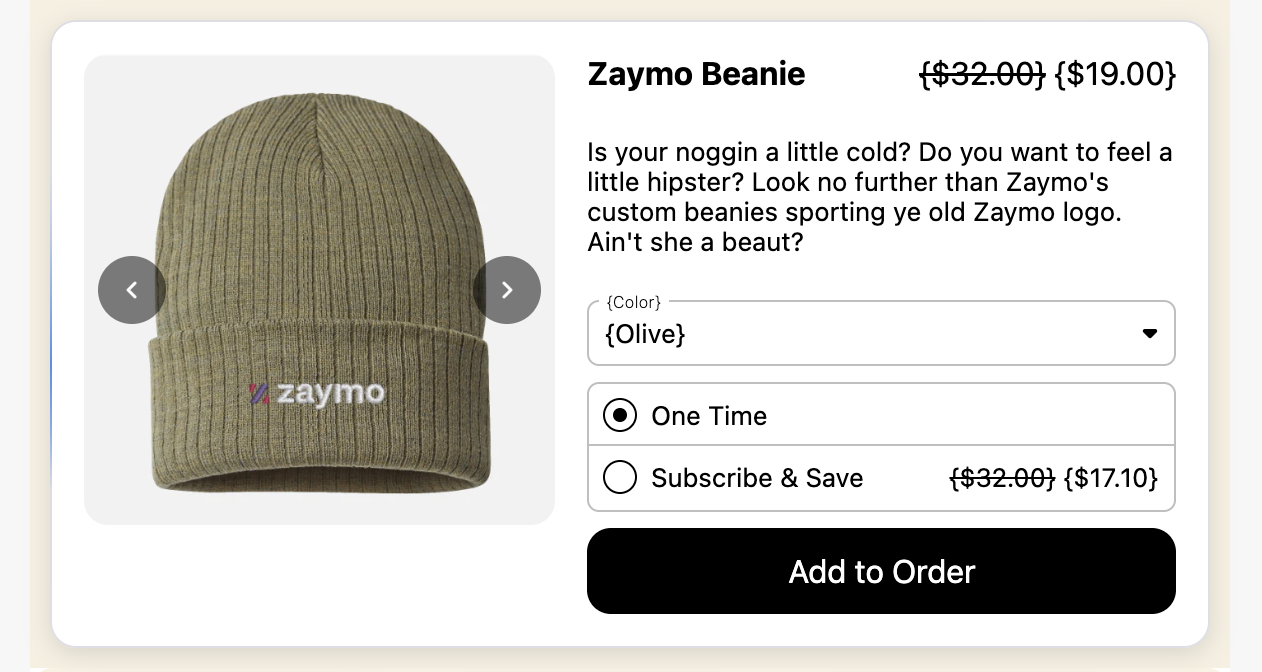
Purchase options also determine which pricing is displayed to customers. One-time purchase options ("Add one-time" and "Create one-time order") display the product's one-time price, while subscription purchase options ("Add to subscription" and "Create new subscription") display the subscription price. To show subscription pricing for one-time purchases, you would need to use a discount code instead.
Support by Subscription Provider
Add one-time | Add to subscription | Create one-time order | Create new subscription | Free for subscribers | |
Recharge | ✅ | ✅ | ✅ | ✅ | ✅ |
Skio | ✅ | ✅ | 🚫 | ✅ | ✅ |
Stay.ai | ✅ | ✅ | 🚫 | ✅ | ✅ |
Ordergroove | ✅ | ✅ | ✅ | 🚫 | ✅ |
Loop | ✅ | ✅ | 🚫 | 🚫 | 🚫 |
Recurly | ✅ | ✅ | 🚫 | 🚫 | ✅ |
Submarine | ✅ | ✅ | 🚫 | 🚫 | 🚫 |
Enabling purchase options
Eligible purchase options for a given product come from your product's setup within your subscription platform. If you expect a purchase option to be enabled and it is not, see below to understand where the option is configured.
Purchase options are cached for 24 hours, so they may not appear immediately, even when enabled within your subscription platform. If you need to refresh the results sooner, please reach out to the Zaymo team.
Common use cases for purchase options
Use “Create new subscription” when customers want to start fresh with different product variants or flavors, such as in winback email flows where reactivating the original subscription wouldn’t allow variant changes.
Recharge
Add one-time
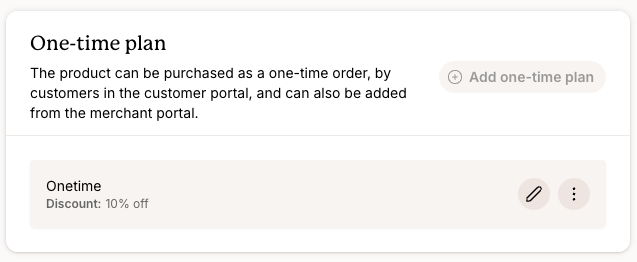
Navigate to products and select the product in question. Ensure the "Available as one-time product" toggle is ON.
Add to subscription / create new subscription
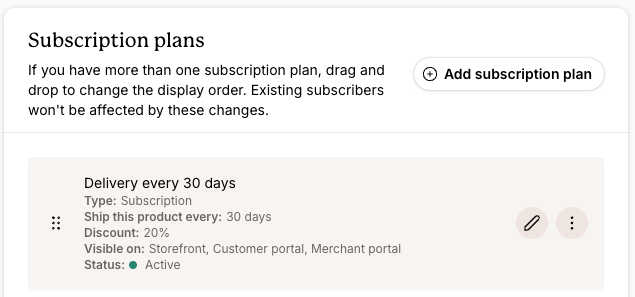
Navigate to products and select the product in question. Review the subscription plans assigned to the given product.
Skio
Add one-time
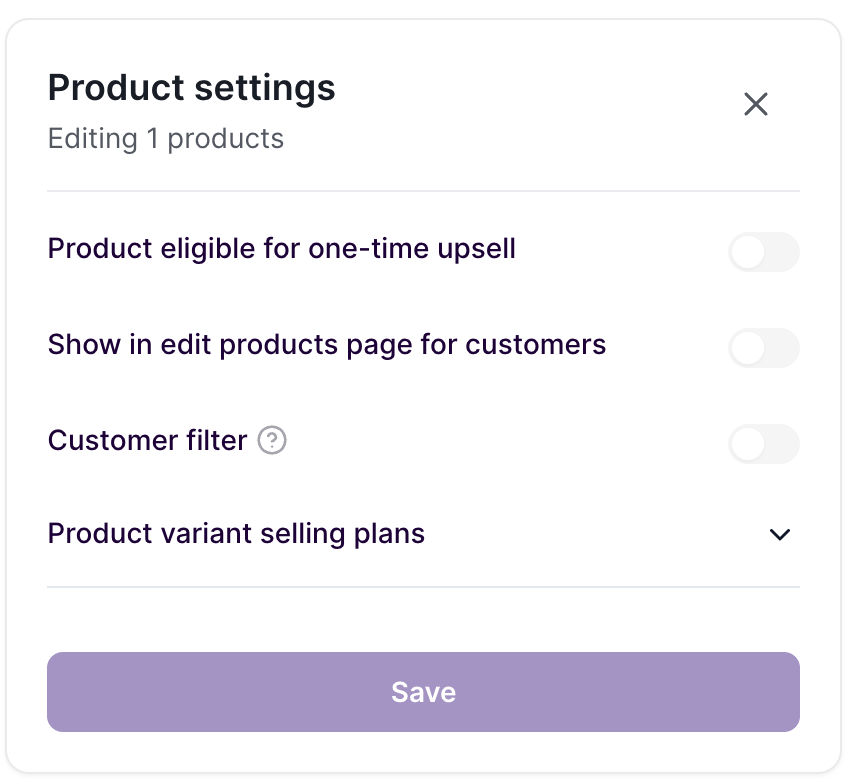
Navigate to tools > products and select the product in question. Ensure the "Product eligible for one-time upsell" toggle is ON.
Add to subscription / create new subscription
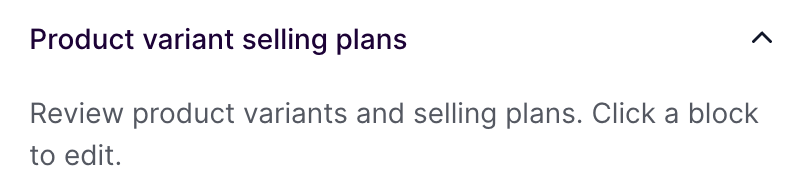
Navigate to tools > products and select the product in question. Review the selling plans assigned to the given product.
Stay.ai
Add one-time
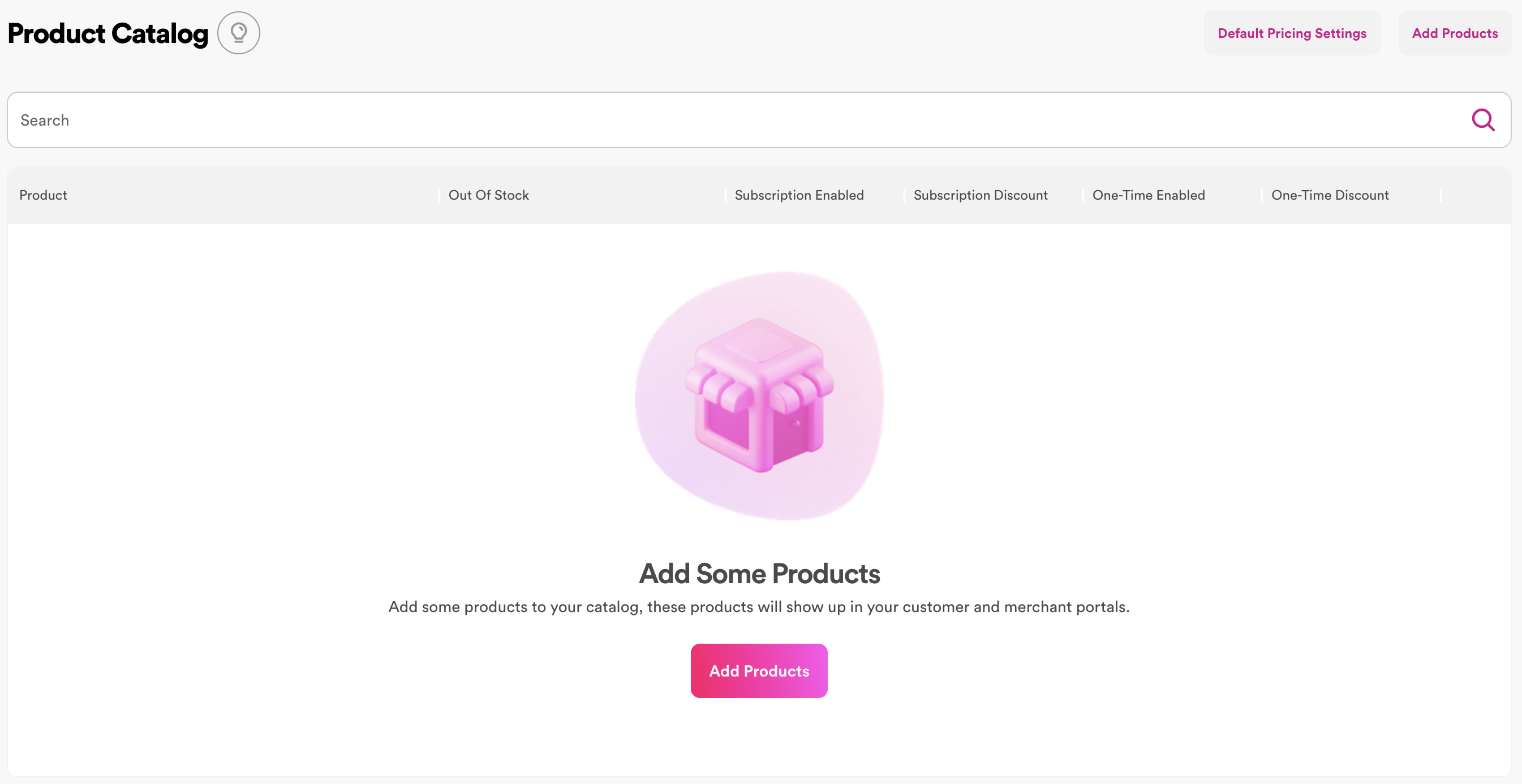
Navigate to products > catalog to see at a glance whether one-time and subscription purchase is enabled. Click on the product detail page to enable the option.
Add to subscription
Navigate to products > catalog to see at a glance whether any selling plans apply to the given product ("subscription enabled"). Click on the product detail page to apply selling plans.